 FieldPeek for Jira Service Management
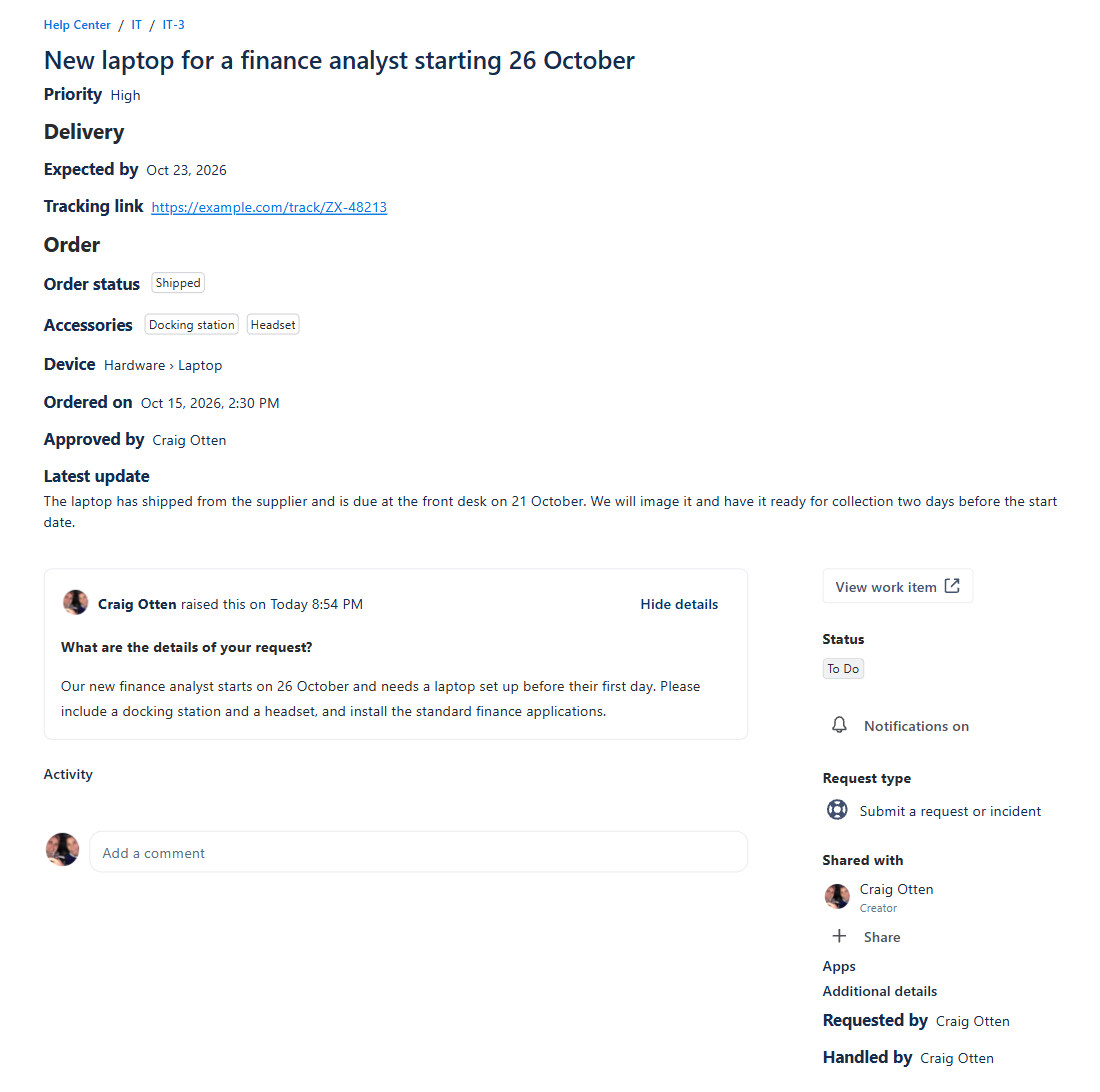
Show customers the Jira fields they need, right under the request title, with a different layout for each request type.
Read the setup guideGet support
Why FieldPeek
Jira Service Management only shows customers the fields on the request form. The details they ask about most, such as who is handling the request, when it is due, or where an order has got to, stay hidden in Jira. FieldPeek lets your space admins show any Jira field on the portal's request view, read-only, without changing request types or screens.
Fields where customers look first
- Under the request title. Fields appear at the top of the request, above the description and the activity, so customers see them the moment the page opens.
- In the right-hand panel. Supporting details sit alongside status and request type. The panel hides itself on requests where it has nothing to show.
- You choose what goes where. Put the fields that matter most under the title and the rest in the panel.
A layout for every request type
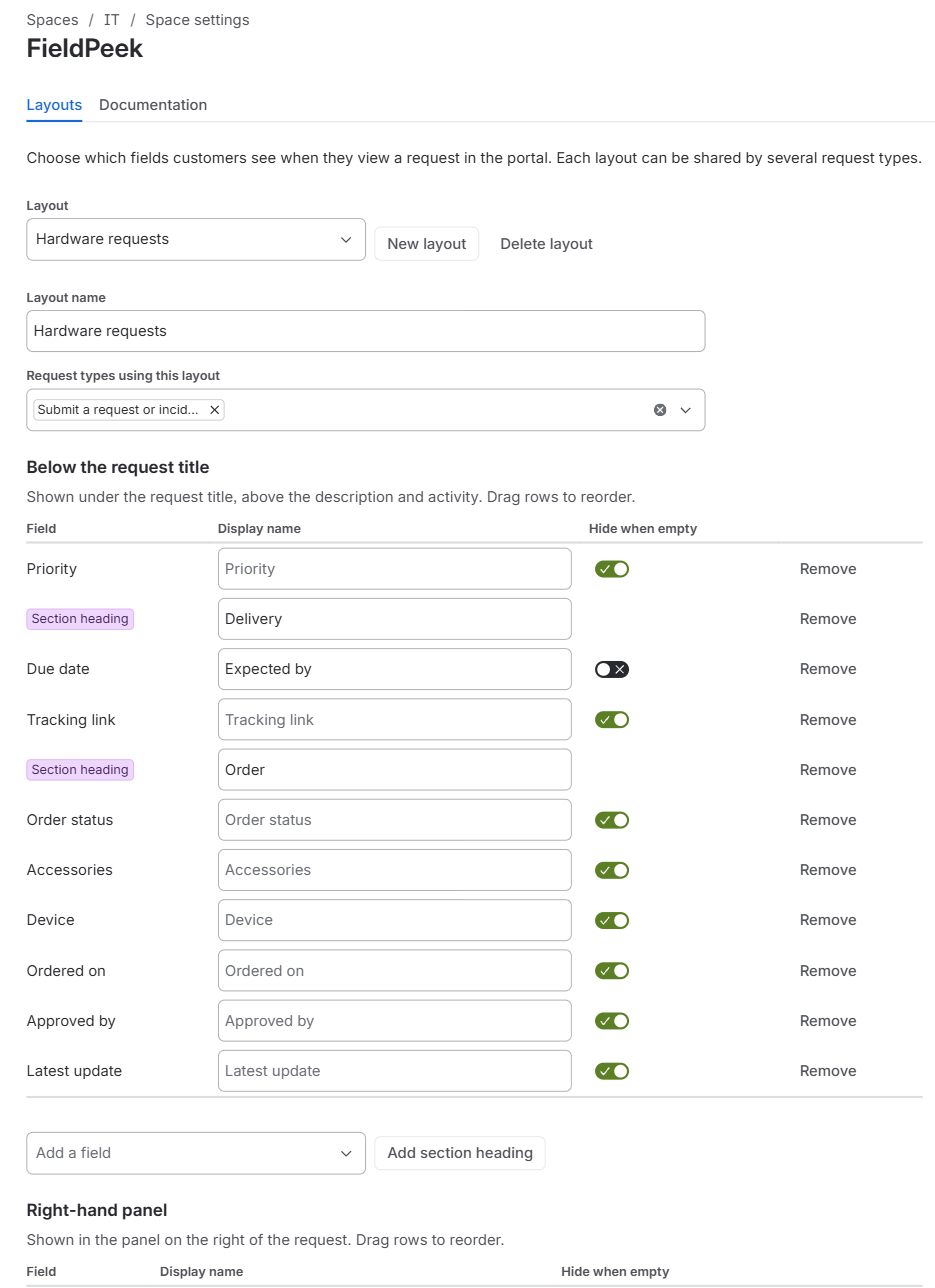
- Layouts per request type. A hardware request and an access request need different fields. Build a layout for each.
- Share a layout. One layout can serve several request types, so similar request types are set up once.
- Drag and drop ordering. Put fields in the order customers should read them.
- Customer-friendly names. Rename any field for the portal without renaming it in Jira.
- Hide when empty. Leave out fields, and their names, that have no value yet.
- Section headings. Group fields under headings such as "Order" and "Delivery".
Values that read well
- Short values sit on the same line as the field name. Long text and rich text get their own line, with formatting kept.
- Select, multi-select, radio and checkbox options appear as tags, as they do in Jira.
- Dates and times follow the customer's language and time zone.
- Cascading selects show parent and child together, for example "Hardware › Laptop".
- URLs are links that open in a new tab, and customers are asked to confirm before leaving for an external site.
Admins stay in control
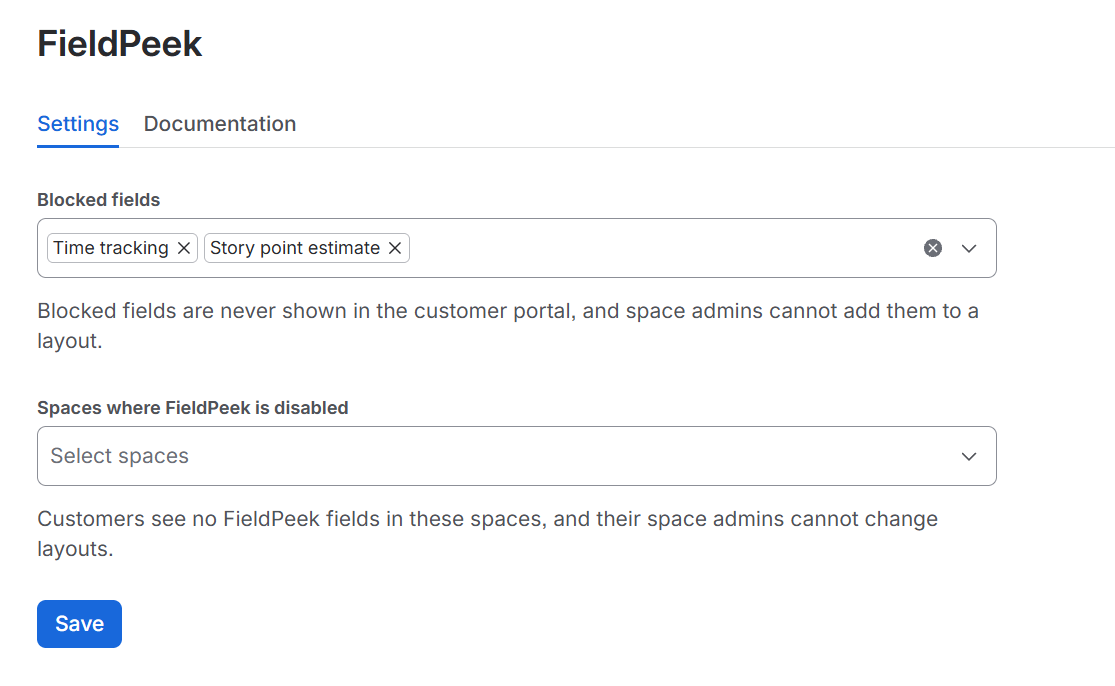
- Block fields site-wide. Jira admins can block any field from ever reaching the portal. Space admins cannot add a blocked field to a layout.
- Disable per space. Jira admins can switch FieldPeek off for individual spaces.
- Read-only for customers. Customers cannot edit anything through FieldPeek.
- Same access as the request. Fields only appear on requests the signed-in customer is allowed to open.
Built on Atlassian Forge
FieldPeek runs entirely on Atlassian's Forge platform and makes no requests to any service outside Atlassian. Field values are read when a customer opens a request and are never stored. The app stores only its own configuration. See the privacy policy for the detail.
Good to know
- FieldPeek works in Jira Service Management spaces that have a customer portal. Customer Service Management spaces are not supported.
- Customers must be signed in to the portal. Anonymous visitors do not see FieldPeek fields.
- Jira Assets object fields are not supported yet.